
Google Drive Integration
Learn how to connect your Google Drive to Alan Workstation for seamless document synchronization.
Overview
Alan Workstation's Google Drive integration allows you to automatically synchronize documents from your Google Drive to your workspace. This integration ensures that your team always has access to the most up-to-date versions of important documents without manual uploads.
Setting Up the Integration
To connect your Google Drive to Alan Workstation:
- Navigate to the integrations page
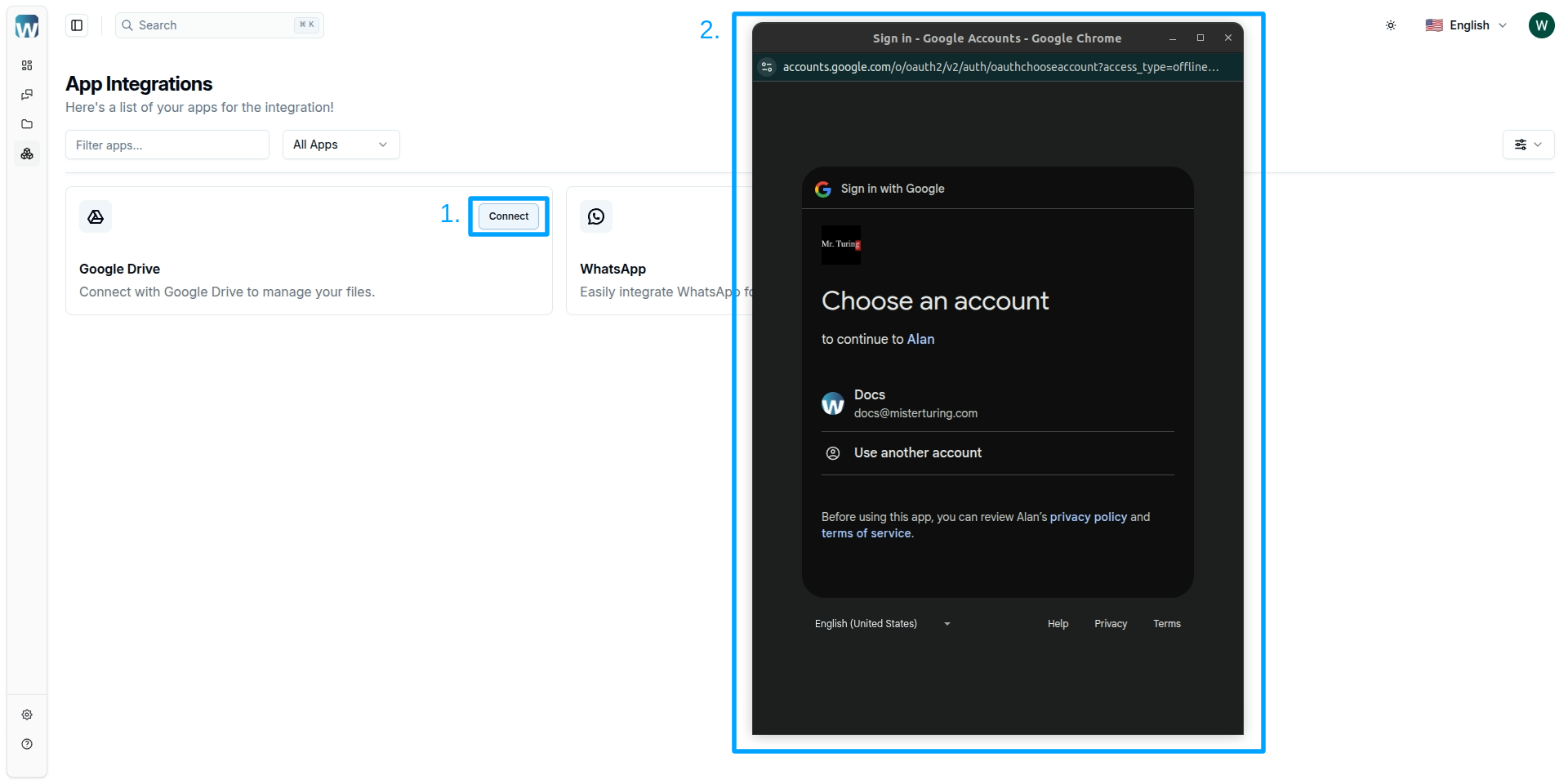
- Click on the Google Drive integration card
- Click Connect to begin the authorization process
- You will be prompted to log in with your Google account
- Review and accept the permissions requested by Alan Workstation to access your Google Drive files
- Once authorized, you will be redirected to the file manager page
Selecting Folders to Synchronize
After successful authorization:
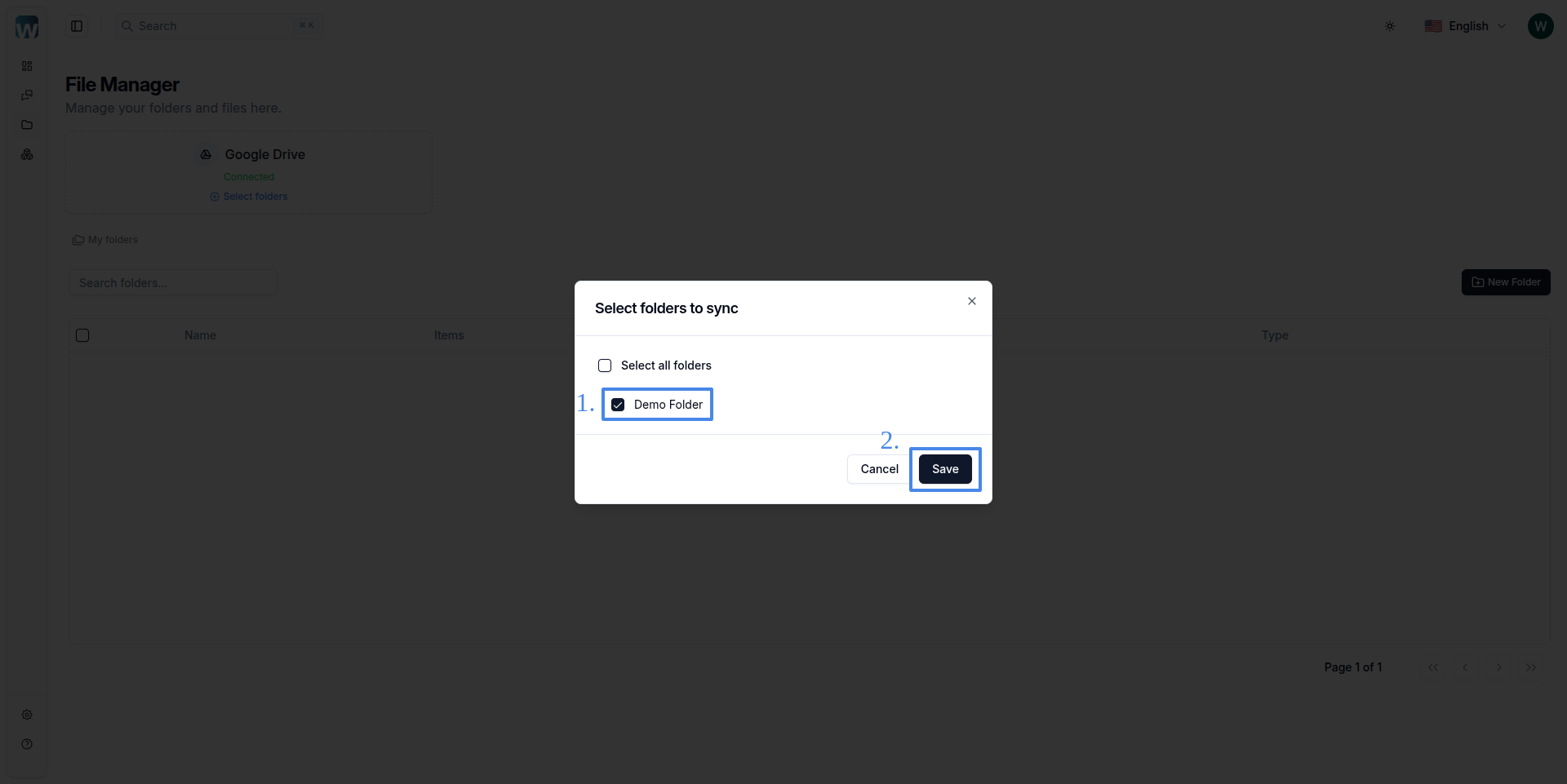
- You will be automatically redirected to the file manager page
- A dialog will open showing a list of your Google Drive folders, including:
- Folders you own
- Folders shared with you
- Select the folder(s) you want to synchronize with Alan Workstation
- Click Synchronize to begin the process
Synchronization Process
When you select a folder for synchronization:
- All files within the selected folder (including those in nested subfolders) will be queued for processing
- Files are downloaded from Google Drive and uploaded to Alan Workstation's secure infrastructure
- Each file is processed to enable AI-powered search and chat functionality
- A synchronization status indicator will show progress for each file
Folder Structure and Limitations
It's important to understand how Google Drive folders are represented in Alan Workstation:
- All files from the selected Google Drive folder, including those in nested subfolders, will appear in a single folder in Alan Workstation
- The current version does not maintain the nested folder structure from Google Drive
- The folder in Alan Workstation will be named after the Google Drive folder you selected
Automatic Updates and Synchronization
One of the key benefits of the Google Drive integration is automatic synchronization:
- Alan Workstation continuously monitors your connected Google Drive folders for changes
- When a file is modified in Google Drive, Alan Workstation detects the change
- The updated file is automatically re-processed within 5 minutes of the last modification
- This applies to:
- File content updates
- File name changes
- File deletions
- New files added to the synchronized folder
- Synchronized folder is deleted
This automatic synchronization ensures that:
- Your team always has access to the most current versions of documents
- Any insights or answers provided by Alan's AI are based on the latest information
- There's no need for manual re-uploading when documents change
- Deleted files are automatically removed from your workspace
Managing Synchronized Folders
To manage your synchronized Google Drive folders, you have two options:
From the Table
- Navigate to the file manager page
- Google Drive synchronized folders are marked with the Google Drive icon in the folder list
- To delete synchronized folders:
- Select one or more folders and click the trash icon at the top of the table, or
- Click the three dots on the right side of the folder row and select Delete
- Confirm the deletion in the dialog that appears
From the Google Drive Integration Card
- Navigate to the file manager page
- Find the Google Drive integration card
- Click Select Folders to view and modify your currently synchronized folders
- From here you can:
- Select additional folders to synchronize
- Unselect folders you want to remove from synchronization
- Click Save to apply your changes
Disabling the Integration
If you want to completely disable Google Drive synchronization:
- Navigate to the integrations page
- Find the Google Drive integration card
- Click Disconnect and confirm your choice
- All synchronized Google Drive folders and their files will be deleted from Alan Workstation
Future Integrations
Google Drive is just the beginning of Alan Workstation's integration capabilities. In the near future, we plan to expand our integrations to include:
- Microsoft OneDrive
- SharePoint
- Dropbox
- Notion
- Confluence
- And many more document management platforms
These upcoming integrations will provide even more flexibility in how you connect your existing document repositories to Alan Workstation's powerful AI capabilities.