
Platform Related
Learn how to organize and manage your documents in Alan Workstation.
File Manager Structure
Alan Workstation uses a familiar folder-based structure to organize your documents:
- Root Folder: The top-level container for your workspace. The root folder can only hold other folders.
- Folders: Containers that can hold files. Currently, nested folders are not supported.
- Files: Individual documents of various types.
Supported File Types
Alan Workstation supports the following file formats:
- Documents: PDF, DOCX, DOC, TXT
- Presentations: PPTX, PPT, ODP
- Spreadsheets: XLSX, CSV
- Other: HTML
Creating Folders
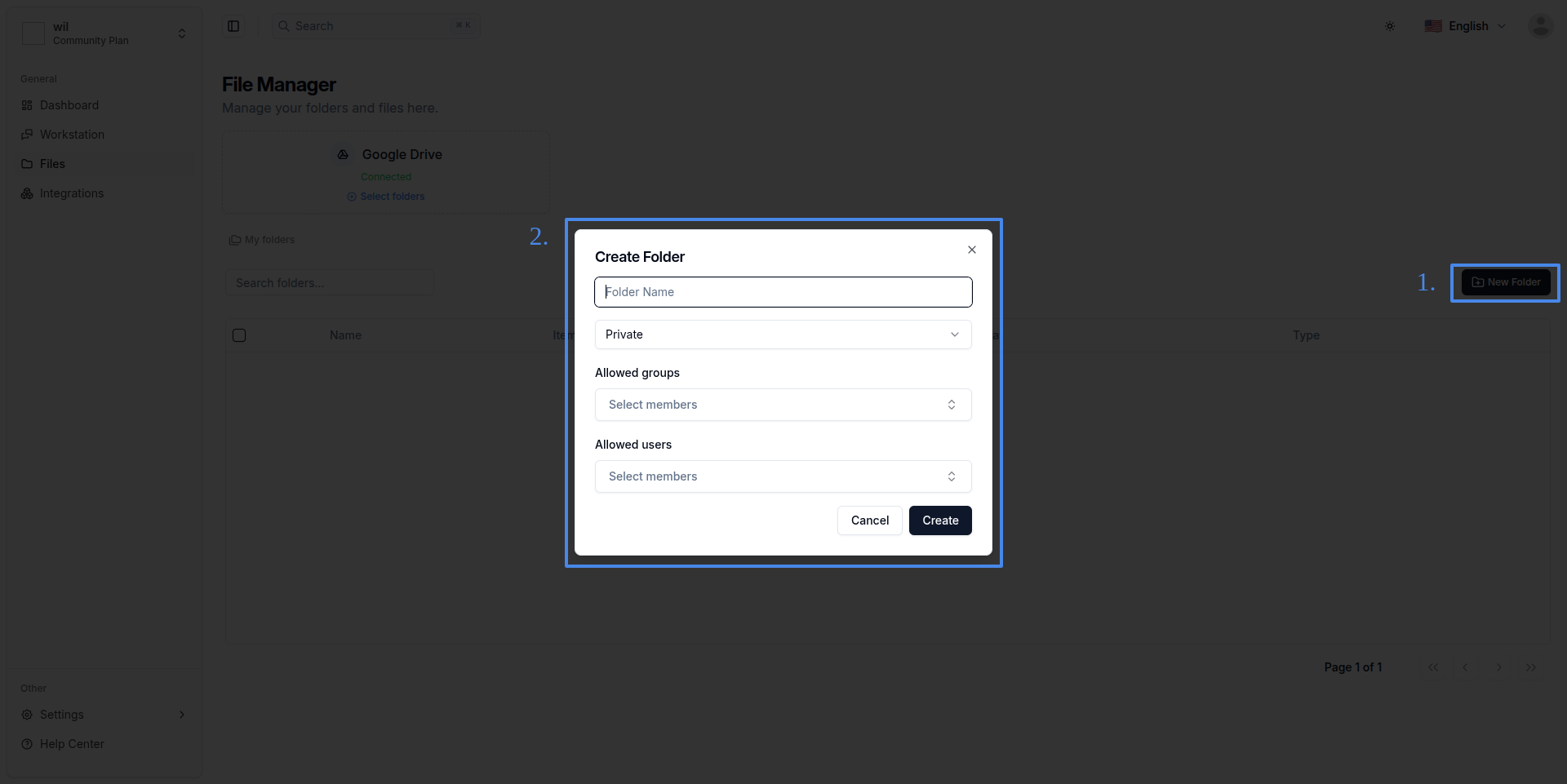
To create a new folder:
- Navigate to the file manager page
- Click the New Folder button
- Enter a name for the folder and select it's visibility (public or private)
- Optionally, select groups or individual members to share the folder with. The user that creates the folder will be automatically added to it.
- Click Create
Uploading Files
- Navigate to the desired folder
- Click the Upload file button
- Select files from your computer
- Click Open

Deleting Files and Folders
To delete files or folders:
- Select one or more items you want to delete
- Press the trash icon on the top right of the table, or
- Click the three dots on the right side of the table row and select Delete
- Confirm the deletion in the confirmation dialog that appears
Searching for Files and Folders
To find files quickly:
- Use the search bar at the top of the file table
- Enter file names to search for
- The system will filter files based on the name you entered
The search functionality works for both files and folders.
Folder API
Get Folders
To get a list of folders, use the following API endpoint:
curl -X GET https://api.mrturing.ai/folders \
  -H "Authorization: {token}" \
  -G \
  --data-urlencode "page=1" \
  --data-urlencode "limit=10" \
  --data-urlencode "search=My Folder"
Request Parameters
| Field | Type | Required | Default | Description |
|---|---|---|---|---|
user_id | UUID | Yes | - | The ID of the user making the request |
organization_id | UUID | Yes | - | The ID of the organization |
page | integer | No | 1 | Page number for pagination |
items_per_page | integer | No | 10 | Number of items per page |
start_time | date | No | - | Filter folders created after this date |
end_time | date | No | - | Filter folders created before this date |
search | string | No | - | Search term to filter folders by name |
order_by | string | No | "created_at" | Field to sort by |
order_direction | string | No | "desc" | Sort direction ("asc" or "desc") |
Get Folder
To get a specific folder, use the following API endpoint:
curl -X GET https://api.mrturing.ai/folders/{folder_id} \
  -H "Authorization: {token}"
Request Parameters
| Field | Type | Required | Description |
|---|---|---|---|
external_id | UUID | Yes | The ID of the folder to retrieve |
organization_id | UUID | Yes | The ID of the organization |
user_id | UUID | Yes | The ID of the user making the request |
Create Folder
To create a new folder, use the following API endpoint:
curl -X POST https://api.mrturing.ai/folders \
  -H "Authorization: {token}" \
  -d '{
    "name": "My Folder",
    "is_public": true,
    "groups_access": ["group_id1", "group_id2"],
    "users_access": ["user_id1", "user_id2"]
  }'
Request Body
| Field | Type | Required | Default | Description |
|---|---|---|---|---|
organization_id | UUID | Yes | - | The ID of the organization |
created_by | UUID | Yes | - | The ID of the user creating the folder |
name | string | Yes | - | Name of the folder |
is_public | boolean | No | false | Whether the folder is public |
category | string | No | "user" | Category of the folder |
parameters | object | No | - | Additional parameters as key-value pairs |
groups_access | UUID | No | - | Array of group IDs that should have access |
users_access | UUID | No | - | Array of user IDs that should have access |
Update Folder
To update a folder, use the following API endpoint:
curl -X PATCH https://api.mrturing.ai/folders/{folder_id} \
  -H "Authorization: {token}" \
  -d '{
    "name": "My Updated Folder",
    "is_public": true,
    "groups_access": ["group_id1", "group_id2"],
    "users_access": ["user_id1", "user_id2"]
  }'
Request Body
| Field | Type | Required | Description |
|---|---|---|---|
organization_id | UUID | Yes | The ID of the organization that owns the folder |
folder_id | UUID | Yes | The ID of the folder to update |
user_id | UUID | Yes | The ID of the user making the update |
name | string | No | New name for the folder |
is_public | boolean | No | Whether the folder should be public (true) or private (false) |
parameters | object | No | Additional parameters as key-value pairs |
groups_access | UUID | No | Array of group IDs that should have access to the folder |
users_access | UUID | No | Array of user IDs that should have access to the folder |
Delete Folders
To delete one or more folders, use the following API endpoint:
curl -X DELETE https://api.mrturing.ai/folders \
  -H "Authorization: {token}" \
  -H "Content-Type: application/json" \
  -d '{
    "folderIds": ["folder_id1", "folder_id2"]
  }'
Request Body
| Field | Type | Required | Description |
|---|---|---|---|
folderIds | UUID | Yes | Array of folder IDs to delete |
File API
Upload File
To upload a new file, use the following API endpoint:
curl -X POST https://api.mrturing.ai/files/upload \
  -H "Authorization: {token}" \
  -F "[email protected]" \
  -F "folder_id=uuid"
Request Parameters
| Field | Type | Required | Default | Description |
|---|---|---|---|---|
file | File | Yes | - | The file to be uploaded |
folder_id | UUID | Yes | - | The folder where the file will be stored |
Delete Files
To delete one or more files, use the following API endpoint:
curl -X DELETE https://api.mrturing.ai/files \
  -H "Authorization: {token}" \
  -H "Content-Type: application/json" \
  -d '{"file_ids": ["uuid1", "uuid2"]}'
Request Parameters
| Field | Type | Required | Default | Description |
|---|---|---|---|---|
file_ids | UUID | Yes | - | Array of file IDs to delete |
Get Files
To retrieve a list of files in a folder, use the following API endpoint:
curl -X GET https://api.mrturing.ai/files \
  -H "Authorization: {token}" \
  -G \
  --data-urlencode "folder_id=uuid" \
  --data-urlencode "page=1" \
  --data-urlencode "items_per_page=10" \
  --data-urlencode "search=document"
Request Parameters
| Field | Type | Required | Default | Description |
|---|---|---|---|---|
folder_id | UUID | Yes | - | Filter files by folder |
page | integer | No | 1 | Page number for pagination |
items_per_page | integer | No | 10 | Number of items per page |
search | string | No | - | Search term to filter files by name |
order_by | string | No | "created_at" | Field to sort by (created_at, name, size) |
order_direction | string | No | "desc" | Sort direction ("asc" or "desc") |
start_time | date | No | - | Filter files created after this date |
end_time | date | No | - | Filter files created before this date |
Get Total Size
To get the total size of files, use the following API endpoint:
curl -X GET https://api.mrturing.ai/files/total-size \
  -H "Authorization: {token}" \
  -G \
  --data-urlencode "folder_id=uuid"
Request Parameters
| Field | Type | Required | Default | Description |
|---|---|---|---|---|
folder_id | UUID | No | - | Get total size for specific folder |
Get Document Summary
To retrieve a summary for a specific document, use the following API endpoint:
curl -X GET https://api.mrturing.ai/files/summary \
  -H "Authorization: {token}" \
  -G \
  --data-urlencode "fileId=uuid"
Request Parameters
| Field | Type | Required | Description |
|---|---|---|---|
fileId | UUID | Yes | The ID of the file to retrieve summary for |
Response
{
  "success": true,
  "data": {
    "id": "document_identifier",
    "summary": "Document summary content"
  }
}
Error Responses
{
  "success": false,
  "message": "Document not found"
}