
Authentication and First Steps
Our endpoints are fully protected by AccessToken validation. Let's learn how to authenticate in Alan Workstation.
Authentication
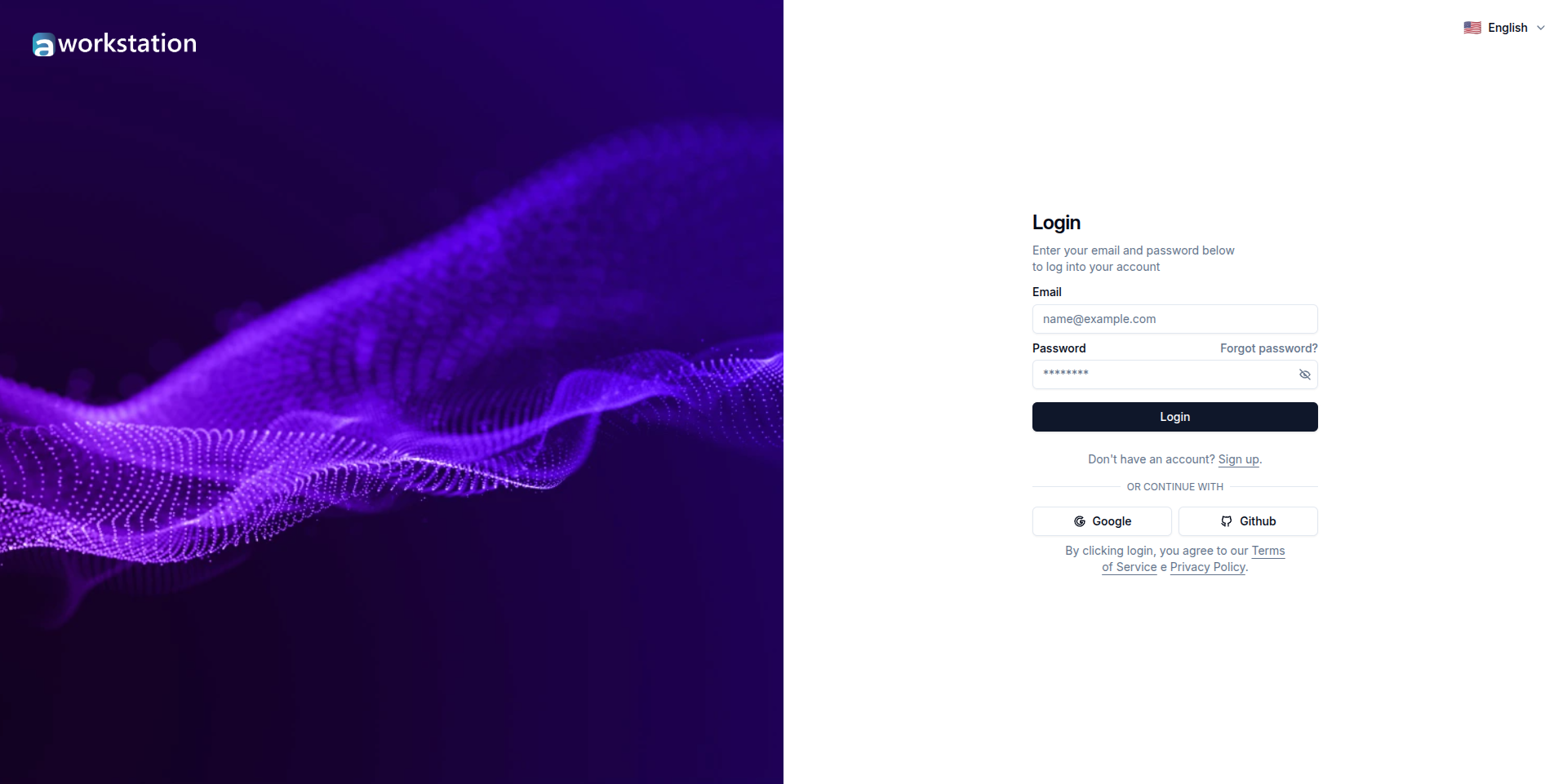
Alan Workstation offers multiple authentication methods to get you started quickly:
- Email and Password: Create an account using your email address and a secure password
- Google: Sign in with your Google account for a seamless experience
- GitHub: Connect using your GitHub credentials
Simply choose your preferred authentication method on the sign-in screen. If you're a new user, you'll be automatically guided through the sign-up process.
Sign up
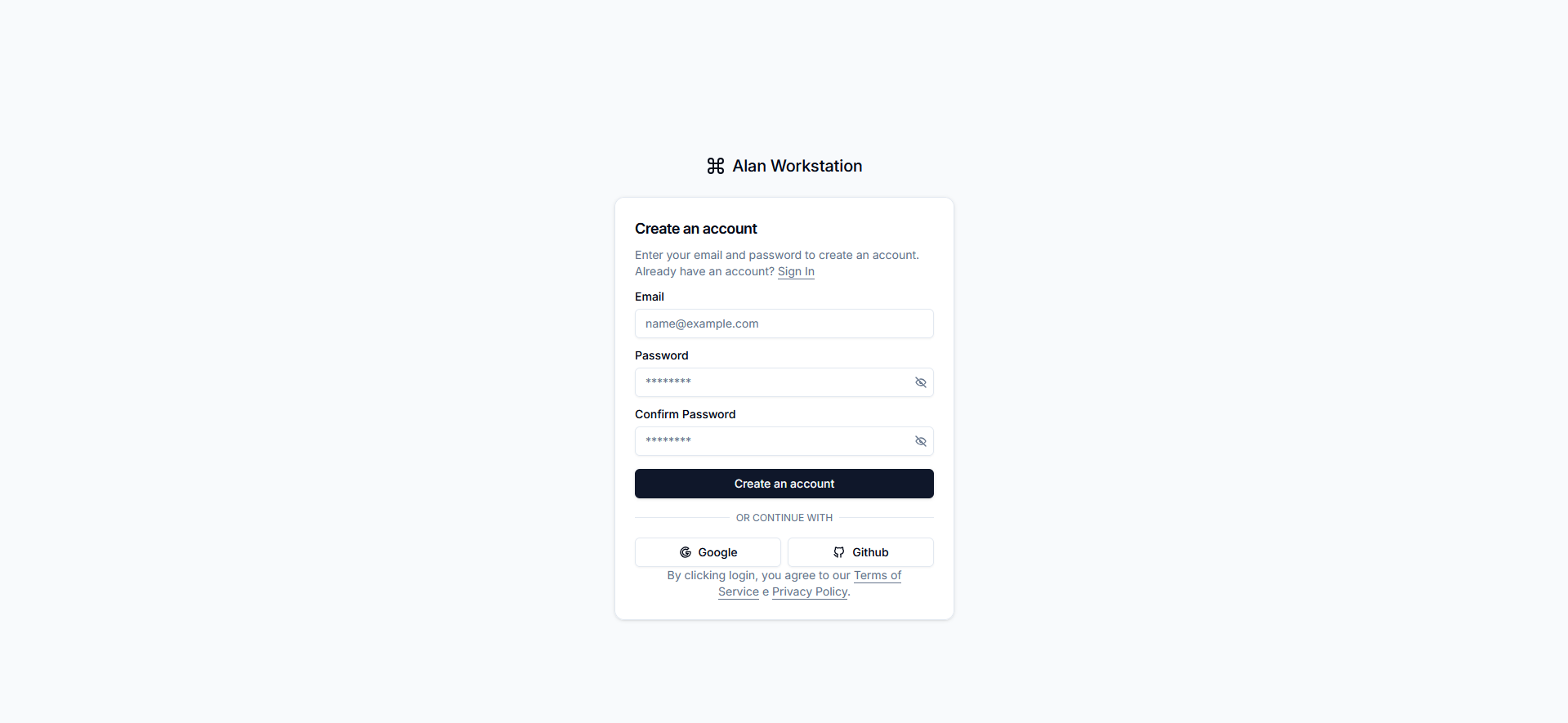
To create a new account in Alan Workstation, follow these simple steps:
- Enter your credentials: Provide your email address and create a secure password
- Confirm your password: Re-enter your password for confirmation
- Create your account: Click the "Create an account" button to complete registration
Alternatively, you can choose to access the platform through:
- Google authentication
- GitHub authentication
If you already have an account, simply click the "Sign In" link to access the login page.
By creating an account or logging in, you agree to Alan Workstation's Terms of Service and Privacy Policy.
Creating Your First Organization
After signing in for the first time, you'll be prompted to create your first organization. An organization is your workspace within Alan Workstation where you'll manage your projects, documents, and team members.
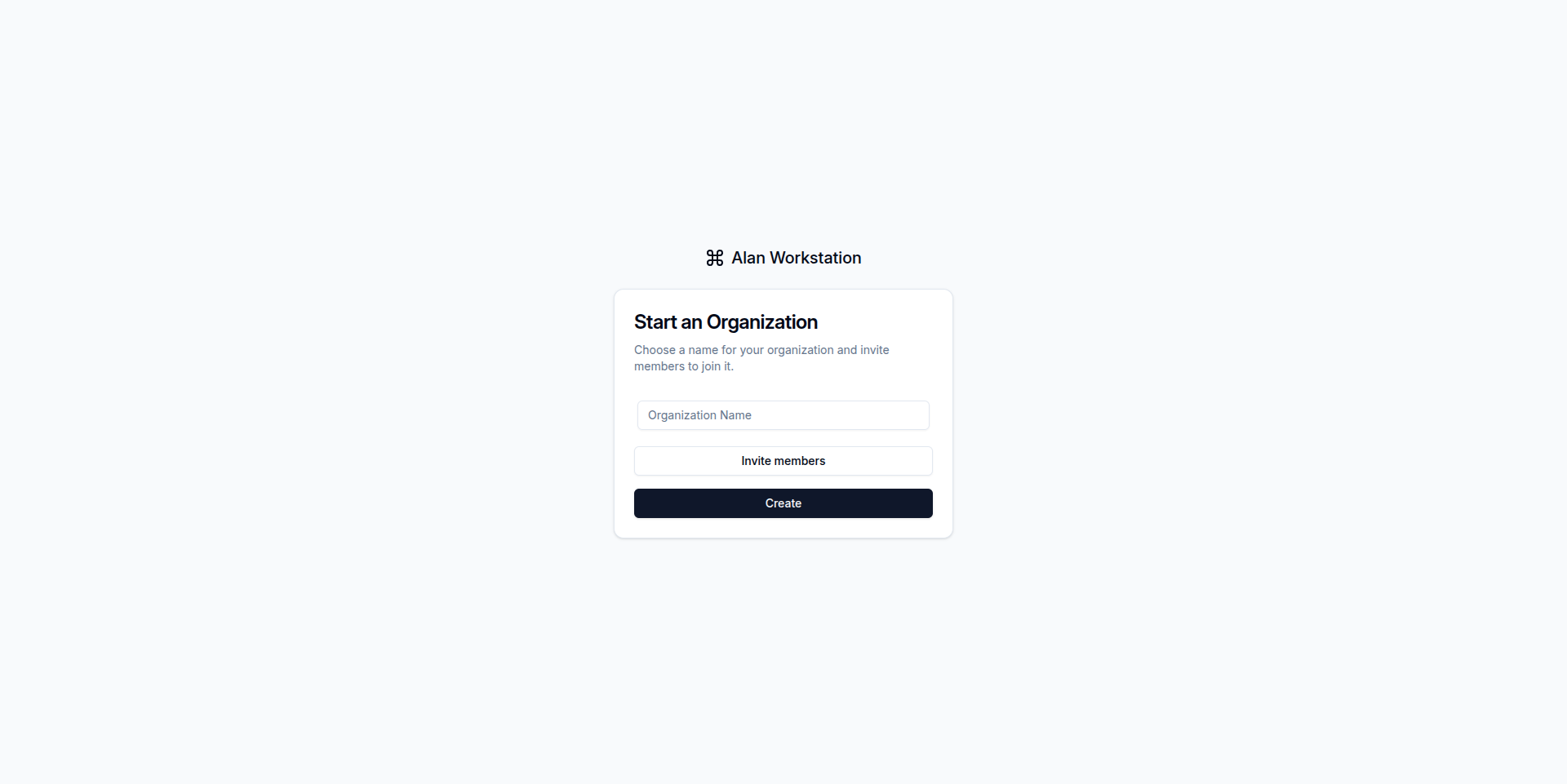
Creating an organization is simple:
- Enter a name for your organization
- Click "Create" to proceed
Once your organization is created, you'll have full access to Alan Workstation's features and can begin setting up your workspace.
API Keys
To access Alan Workstation APIs programmatically, you'll need to create API Keys. These keys provide secure authentication for your applications and integrations.
Viewing Your API Keys
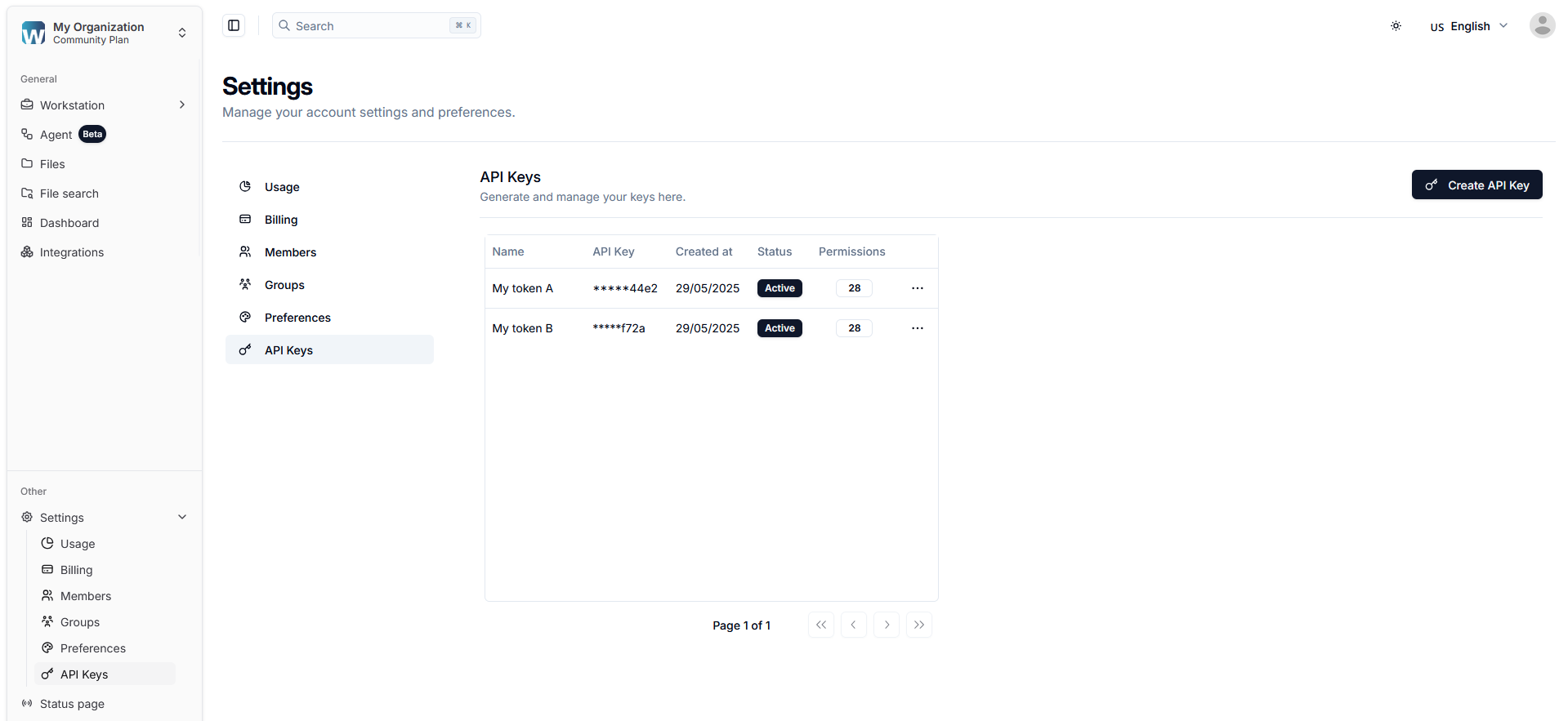
In the API Keys management screen, you can:
- View all keys: See a table with all your existing API Keys
- Check information: Review the name, last four characters of the key, creation date, status, and all permissions assigned to it
- Manage keys: Delete keys as needed
Creating a New API Key
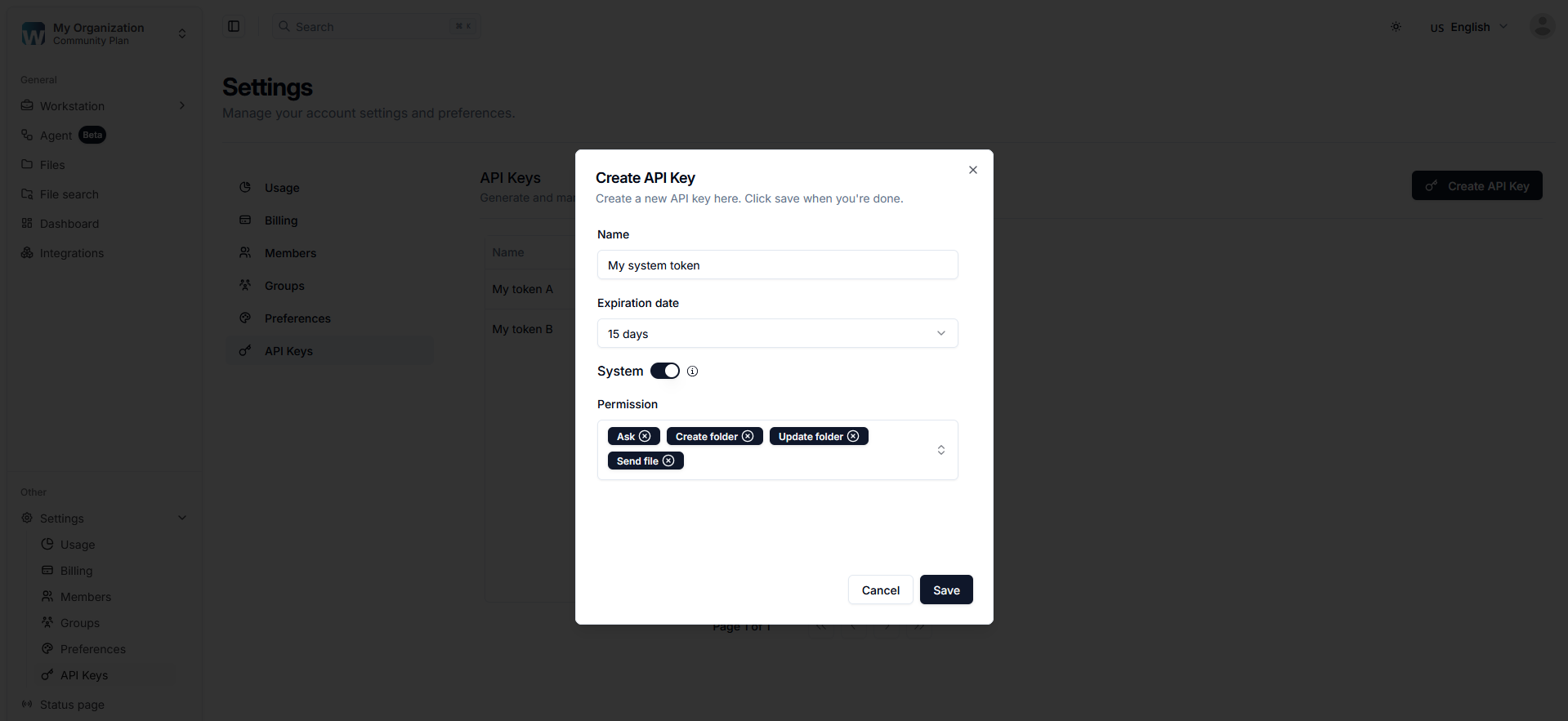
To create a new API Key, follow these steps:
- Key name: Enter a descriptive name to easily identify your API Key
- Key type: Choose from the available types:
system: System tokens are used to authenticate API requests. They are not linked to a specific user, so you must manually assign the necessary permissionsuser: When the "system" option is disabled, the token is linked to the user and follows the permissions assigned to them
- Expiration date: Define when the key should expire (optional). When not set, the key will never expire
- Create key: Click the "Create" button to generate your API Key
Copying Your API Key
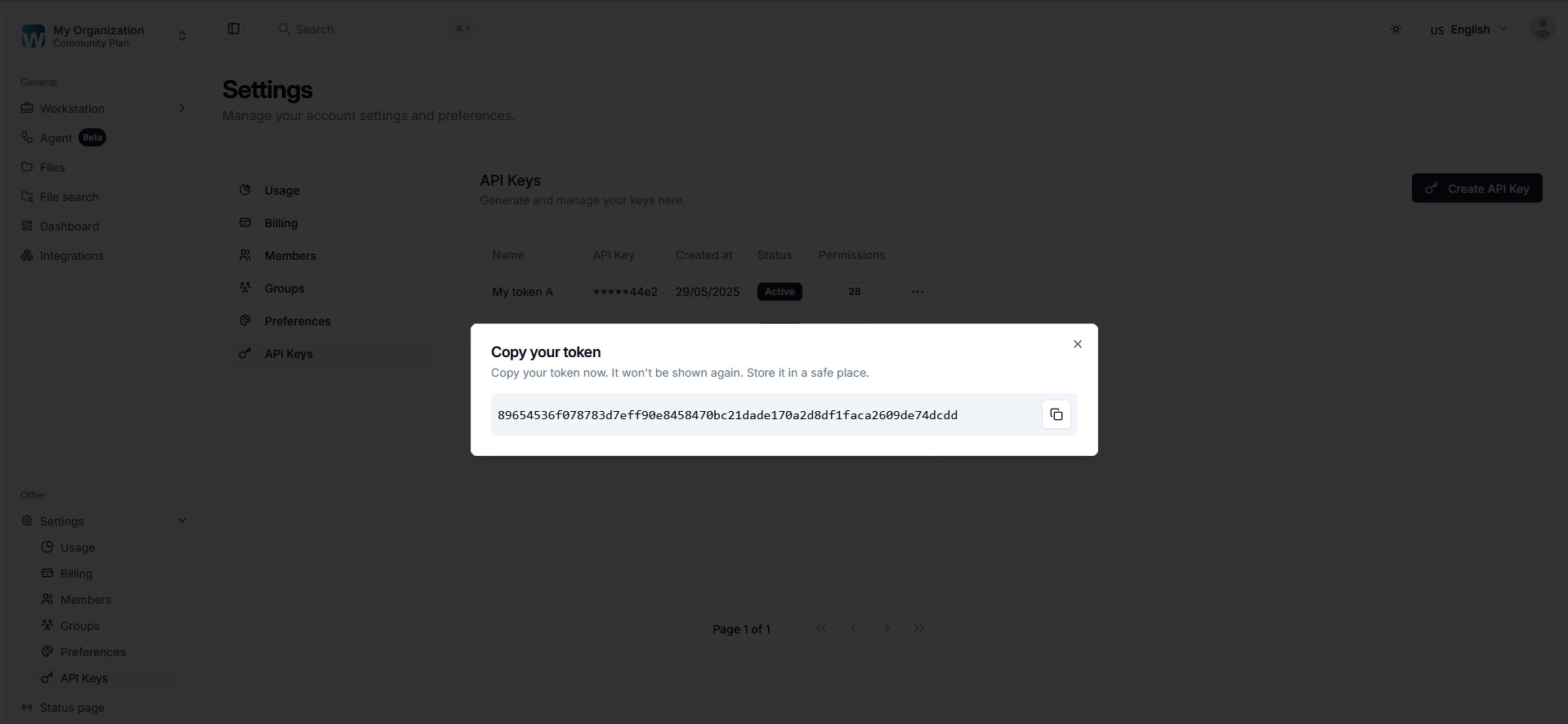
Once your API Key is successfully created, you'll see a confirmation screen displaying your new key. This is your only opportunity to copy the complete API Key:
- Copy the key: Click the "Copy" button to copy the full API Key to your clipboard
- Store securely: Immediately save the key in a secure password manager or encrypted storage
- Never share: Keep your API Key confidential and never expose it in public repositories or client-side code
Security Note: The complete API Key will never be shown again after you leave this screen. Only the last four characters will be visible in the API Keys table for identification purposes.
Authentication API
Generate an API Key using credentials
To generate an API Key using your credentials, use the following API endpoint:
curl --location 'https://api.mrturing.ai/auth/api-token/credentials' \
--header 'Content-Type: application/json' \
--data-raw '{
    "email": "[email protected]",
    "password": "10203040",
    "organization_id": "uuid",
    "name": "My system token",
    "type": "system",
    "expires_at": null
}'
Request Parameters
| Field | Type | Required | Default | Description |
|---|---|---|---|---|
email | string | Yes | - | Email address for authentication |
password | string | Yes | - | User password for authentication |
organization_id | UUID | Yes | - | The ID of the organization |
name | string | Yes | - | Name for the generated token |
type | string | Yes | - | Type of token: (system, user) |
expires_at | string/null | No | null | Token expiration date or null for no expiration |
Generate an API Key
To generate an API Key when already authenticated, use the following API endpoint.
curl --location 'https://api.mrturing.ai/auth/api-token' \
--header {token} \
--header 'Content-Type: application/json' \
--data '{
    "organization_id": "uuid",
    "name": "My system token",
    "type": "system",
    "expires_at": "2025-01-01T00:00:00.000Z"
}'
Request Parameters
| Field | Type | Required | Default | Description |
|---|---|---|---|---|
organization_id | UUID | Yes | - | The ID of the organization |
name | string | Yes | - | Name for the generated token |
type | string | Yes | - | Type of token: (system, user) |
expires_at | string/null | No | null | Token expiration date or null for no expiration |