
Members and Groups
Learn how to manage members and groups within your Alan Workstation organization to control access and permissions effectively.
Groups
Default Groups
Each organization comes with two default groups:
- Administrators: Has full access to all features and permissions
- Employees: Has limited permissions for basic workspace functionality
The organization creator is automatically added to both groups, while invited members are added to the employees group by default.
Administrator Group
The administrator group has special characteristics:
- Contains all possible permissions
- Permissions cannot be modified
- The group cannot be deleted
- Administrators can add or remove other members from this group
Employees Group
The employees group has limited permissions by default:
- Permission to ask questions in the workspace
- Access to dashboard data
- Ability to create and update folders
- Option to change language settings
- Other basic workspace functionalities
The default permission list may change over time as new features are added to the platform.
Managing Groups
If your group has the necessary permissions, you can:
- Extend or revoke permissions for the employees group
- Create new custom groups with specific permissions
- Delete existing custom groups
- Assign users to groups or remove them
- Add or remove members from the administrator group
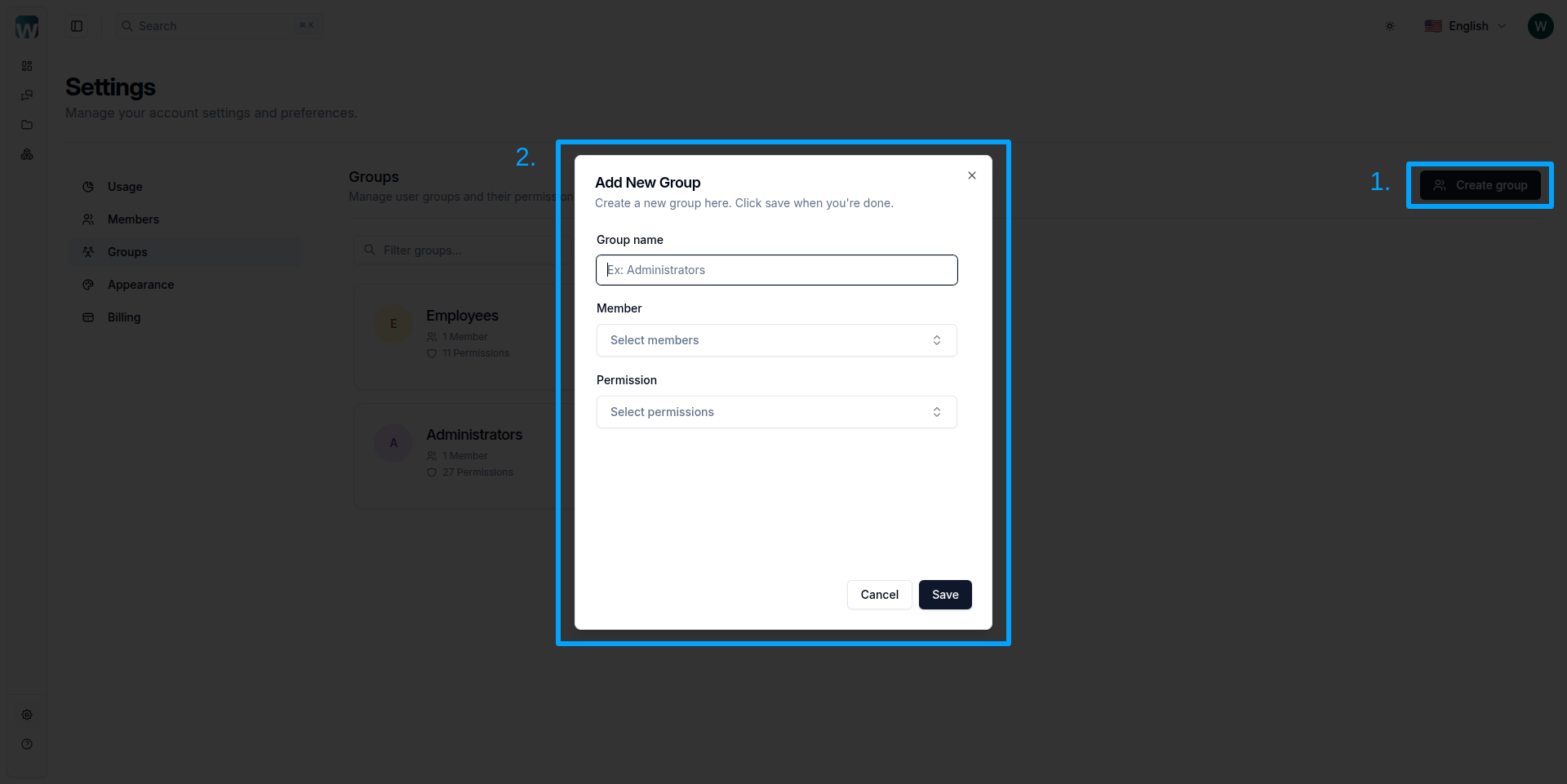
To create a new group with specific permissions:
- Go to groups settings page
- Click "Create group"
- In the dialog that appears, enter:
- Group name
- Select members to add to the group
- Configure permissions for the group
- Click "Create" to save the new group
Members
Adding Members
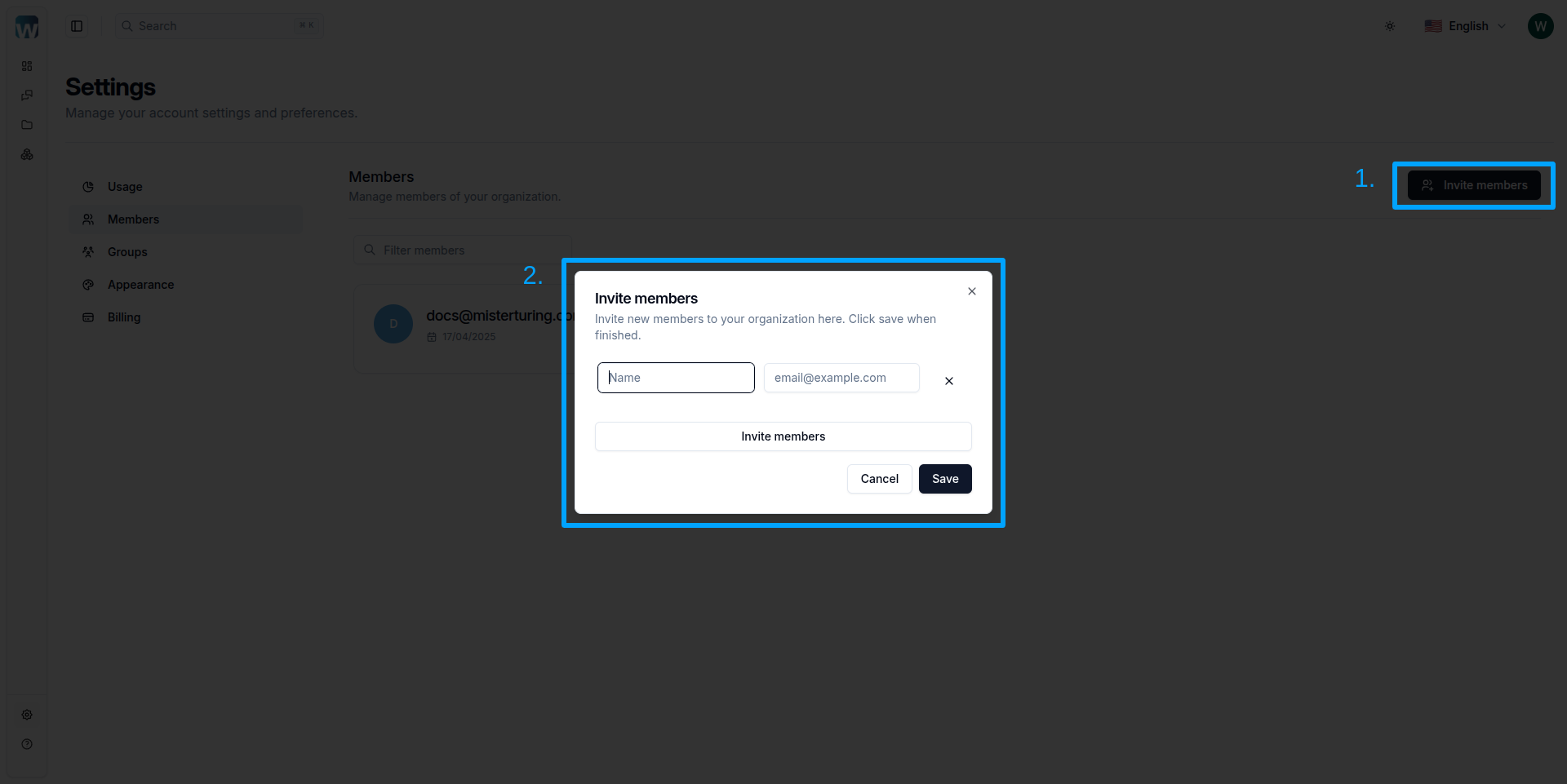
To invite new members to your organization:
- Navigate to members settings page
- Click "Invite members"
- In the dialog that appears, enter:
- Member name
- Email address
- You can invite multiple members at once
- Click "Send Invitation" to complete the process
You can only invite new members if your organization has available member quota based on your current plan.
Managing Member Access
If your group has the necessary permissions, you can:
- View all members in the organization
- See which groups each member belongs to
- Modify group assignments for any member
- Remove members from the organization
- Reset member passwords if needed
Organizing members into appropriate groups helps maintain security and simplifies permission management across your organization.